
Sensitivity Explorer's Smart Assistant feature provides a guided path through the most common operations of the product. Using a "wizard-style" interface, it will help you configure your model workbook's inputs and outputs, including an advanced analysis tool for finding the inputs that are logically connected to the outputs you select. It then will recommend actions that you can accomplish using the selections you have made.
The Smart Assistant is particularly useful the very first time you use Sensitivity Explorer for a particular spreadsheet model.
Select Outputs
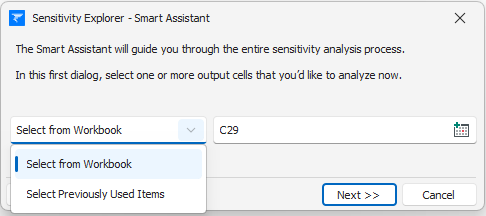
The first step the Smart Assistant is to select the outputs you want to analyze. Usually, it is most convenient to use the default Select from Workbook option, where you simply can choose the output cells directly from your workbook. Alternatively, you can instead use the Select Previously Used Items option, to instead choose from outputs that you have previously used for this particular workbook.
Select Inputs
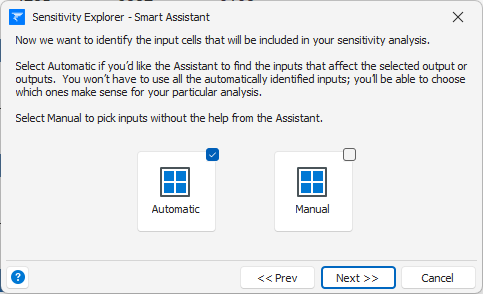
Next, you'll be prompted to identify the inputs to analyze.
The Automatic option tells the Smart Assistant to scan through your model in order to identify the potential inputs that affect your previously chosen outputs. You will then be able to select which of these inputs to use. (Please Note: The Smart Assistant uses a sophisticated set of techniques to generate this list of inputs - in some cases it might not find inputs you were expecting to see. You can always add additional inputs later in the process or go back and change to a manual selection method if necessary.)
The Manual option allows you to select your inputs directly, using a similar interface to how you selected your outputs.
Choose an Action
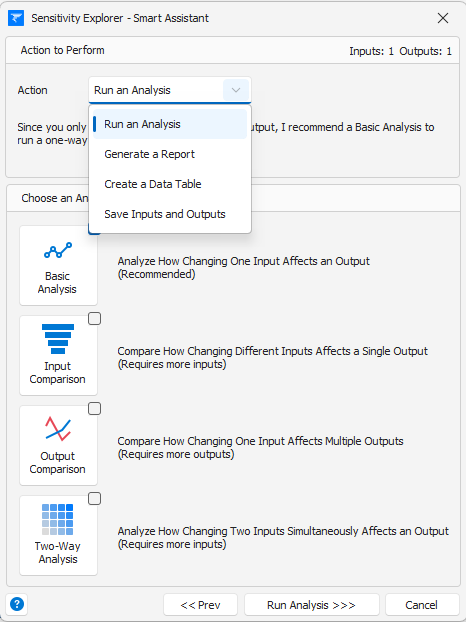
Next you will be asked to identify what action to perform on the outputs and inputs you selected. These actions fit into four broad categories:
Run an Analysis - Choose a Basic Analysis, Input Comparison, Output Comparison, or Two-Way Analysis. (Note: Currently you cannot run a Time-Series Analysis from the Smart Assistant.)
Generate a Report - Choose to generate an Automatic report in PDF, Excel, or Word format. (Note: Custom reports cannot be created via the Smart Assistant.)
Create a Data Table - Choose to generate a one-variable or two-variable Excel data table.
Save Inputs and Output - If you have identified the input and output cells for this workbook but are not yet ready to use them for any specific action, this option permits you to save them in the workbook. Any subsequent analyses or other actions you perform will know about these cells.
Note: In some cases, the number of inputs and outputs you've selected won't be compatible with an option (for example, an input comparison obviously requires more than one input). You can still select these actions, but you may be required at add additional inputs or outputs or remove them to meet the requirements.
Final Review
The last step in the Smart Assistant process is a final review of whatever operation the Smart Assistant has helped you configure. The exact nature of what will be displayed in this step depends on the action you chose previously. In general, however, you will be able to see all the inputs and outputs that you selected and be given an opportunity to add additional ones or remove them as desired. You can also make changes to an input or output's name or other properties.
Was this article helpful?
That’s Great!
Thank you for your feedback
Sorry! We couldn't be helpful
Thank you for your feedback
Feedback sent
We appreciate your effort and will try to fix the article