When you install Sensitivity Explorer, the installer will add a shortcut to your system to launch it (and Excel if it is not already running) for you. However, if you want Sensitivity Explorer to always be available whenever you start Excel, you can add it to Excel's list of add-ins by following these steps:
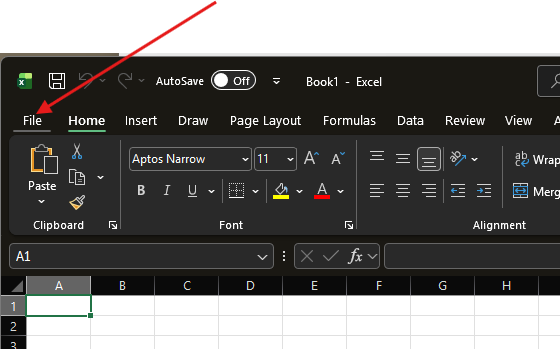
1. Go to Excel's File Menu:
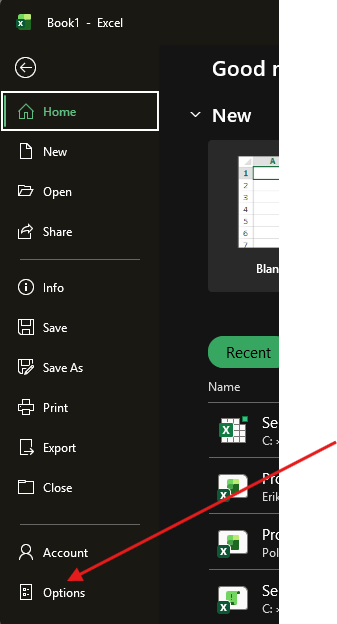
2. Click the Options Buttons
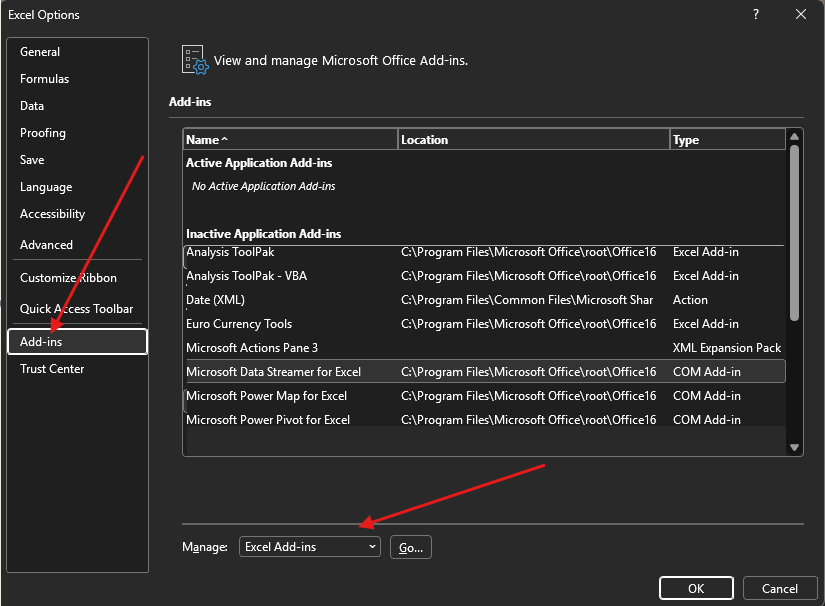
3. Click the "Add-ins" section on the left panel to bring up the Add-ins manager
4. Make sure the "Manage" drop-down is set to "Excel Add-ins" and click the "Go" button
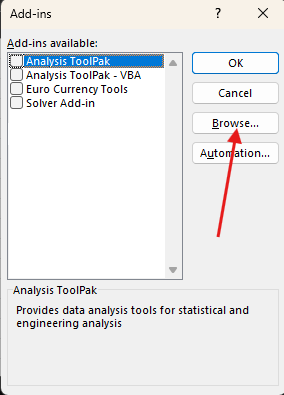
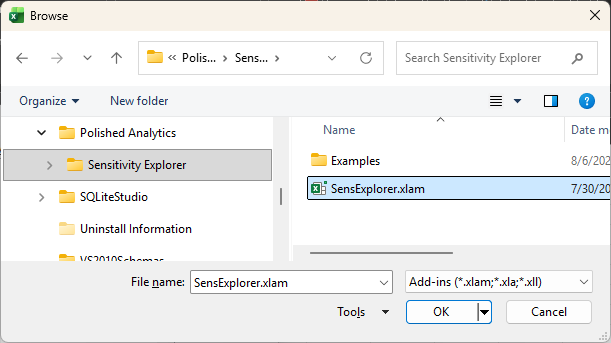
4. Click the "Browse" button
5. In the dialog that is displayed, select the main Sensitivity Explorer add-in file.
It is called SensExplorer.xlam and is located in C:\Program Files\Polished Analytics\Sensitivity Explorer
Sensitivity Explorer will now load every time you start Excel.
Was this article helpful?
That’s Great!
Thank you for your feedback
Sorry! We couldn't be helpful
Thank you for your feedback
Feedback sent
We appreciate your effort and will try to fix the article